简体中文 GitHub ↗

zsh · Bash · Fish

Your terminal.
In your flow.

OPEN-SOURCE TERMINAL AUTOCOMPLETE · AN INDEPENDENT FIG-INSPIRED PROJECT

See candidates as you type. Press the right arrow to insert one. Completion menus and directory-scoped history suggestions work together—no separate autosuggestion plugin needed.

v0.2.0 supports zsh, Bash 4.4+, and Fish 3.6+. Shell support & requirements ↗

01 Appears as you type02 Nested completion03 Uses your environment
rfig — zsh⌘
❯ git checkout
→①feature/ui-refresh
●main
●release/0.1
↑ ↓ Select · → Insert · Enter Run
↳ One more level. Just as easy.

LIVE IN YOUR TERMINAL

Completion, right at your cursor.

Stay in your terminal without memorizing every subcommand. Insert a candidate and keep typing to explore the next level.

Recorded in a real terminalrfig / zsh
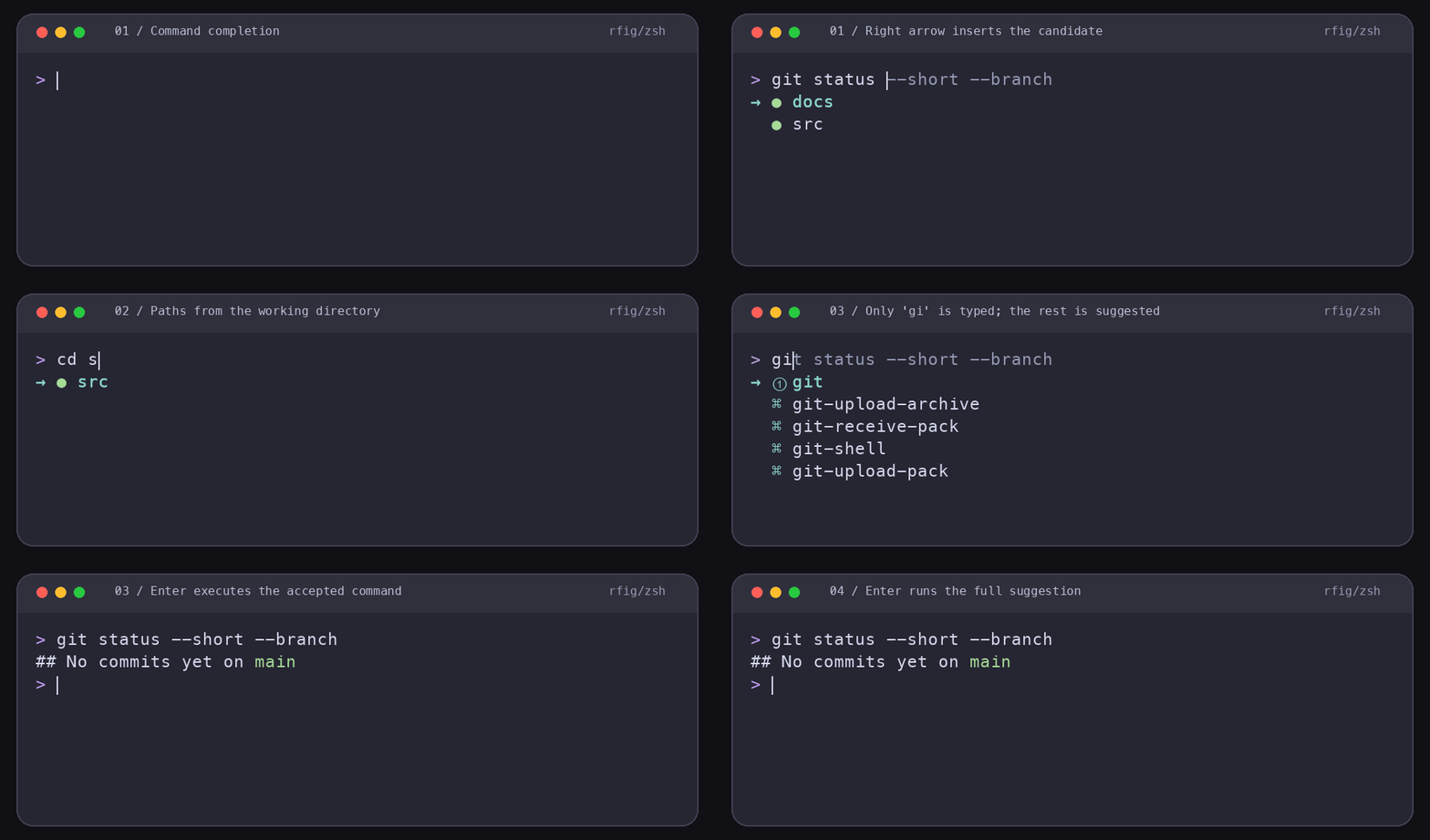
rfig in zsh: command and path completion, with history-based autosuggestions shown, accepted, and executed

↗ Type gi: the menu follows your input, while history suggestions appear as inline gray text. Ctrl+E accepts the suggestion; Enter executes it.

BUILT FOR FLOW

Fewer interruptions.
More focus.

Keep the terminal you know. Let rfig help you remember what comes next.

01 / AS YOU TYPE

Menus and autosuggestions. Together.

The menu uses what you type. History-based autosuggestions match full commands from the current directory and appear as inline gray text. Browse with the arrow keys and insert with Right. Ctrl+E accepts a suggestion; Enter runs the full suggestion when present, or your typed command otherwise.

02 / IN CONTEXT
{git}

Candidates that follow your context.

Start with your shell’s completion definitions, then use available scripts, protocols, and cached help. Branches and paths follow your environment; nested completion depends on the source.

03 / YOUR HABITS
① Frequent  ② Next choice  ↳ More

Your habits shape the order.

Selections and executions build a score for each command context. Frequently used candidates move up; up to three get circled numbers. Every other candidate remains accessible, and records stay on your machine.

Type gi: even if the autosuggestion is git checkout master, the menu still uses only gi. Colors follow your terminal’s ANSI palette, with an arrow and text color marking the selection.

KNOW WHAT WORKS

Choose your familiar shell.

v0.2.0 supports these shells. Enable each one as needed.

Shell support in the current source.
FeatureszshBash 4.4+Fish 3.6+
Automatic menus & nested candidates✅ Supported✅ Supported✅ Supported
Directory-scoped autosuggestions✅ Supported✅ Supported✅ Supported
Usage ranking & category colors✅ Supported✅ Supported✅ Supported

macOS and Linux

Linux x86_64 and ARM64 are supported. Help probing uses Landlock + seccomp and requires Landlock ABI 3+ (typically Linux 6.2+). Existing completions and history remain available without it. Download packages for either architecture from Releases.

Enable the shells you use

Run rfig setup --shell zsh for zsh, or replace the shell name with bash or fish. Open a new session afterward. Your default shell stays the same.

HOW IT WORKS

Install. Set up.
Make yourself at home.

Setup scans executables in your current PATH and common completion directories. On macOS/Linux, eligible commands without rules are analyzed sequentially in an available sandbox. Dynamic candidates are still queried as needed.

01Install rfig

Choose Homebrew, a prebuilt package, or a source installation.

02Run setup

Enable integration for $SHELL or your --shell choice. Enrichment continues in the background when a sandbox is available; setup can be repeated.

03Open a new session

Available candidates appear below your input. History is recorded by directory as you use rfig.

GET STARTED

Ready for your terminal.

Build from source on macOS or Linux. Linux packages are available for x86_64 and ARM64 and require glibc 2.36+. Homebrew and downloaded packages follow published releases. The Bash 3.2 bundled with macOS is not supported.

Run in your terminal
brew install tamia6/tap/rfig
rfig setup

Install the Tap release. Setup uses $SHELL by default; open a new session of that shell afterward.

A FEW DETAILS

A few things before you start.

Do I still need zsh-autosuggestions?

No. rfig includes history-based autosuggestions that replace its history suggestion functionality. Remove the old plugin from .zshrc or your plugin manager, then open a new session. Fish integration also disables native autosuggestions in favor of rfig’s directory-scoped history.

Is rfig a Fig alternative?

rfig is an independent, open-source terminal autocomplete project inspired by Fig. It is not affiliated with Fig and does not claim compatibility with every Fig feature or specification.

Does rfig complete every command?

No. Candidate coverage depends on completion definitions, scripts, generators, and cached help available on your system. Some commands may have no candidates or only basic help-derived candidates.

Does rfig use AI?

No. Completion, history suggestions, and usage ranking run locally; no AI service or cloud account is required.

Does rfig import old history or scan my whole computer?

Old shell history without directory information is not imported automatically. Scanning covers your current PATH and common completion directories, not the whole disk. History, selection records, and caches live in ~/.config/rfig/.

What does Enter do when both a menu and suggestion appear?

Enter executes the full autosuggestion when one is present. Otherwise, it executes your typed input without accepting the highlighted menu item. At the end of the line, Right prioritizes the menu selection; Ctrl+E accepts the autosuggestion without executing it.

Why do some commands have no candidates?

A command may have no usable definition, or background analysis may be pending, skipped, or unsuccessful. Check ~/.config/rfig/enrich.status: done means processing ended, not that every command succeeded. Refresh one with rfig analyze <command>. If Landlock is unavailable or restricted on Linux, probing is refused rather than run without isolation.

How do I enable another shell?

Run rfig setup --shell zsh, rfig setup --shell bash, or rfig setup --shell fish, then open a new session of that shell. Setup does not change your default shell, and candidates may differ between shells.